Logging into your account
Visit our website: https://www.comfyworkers.com
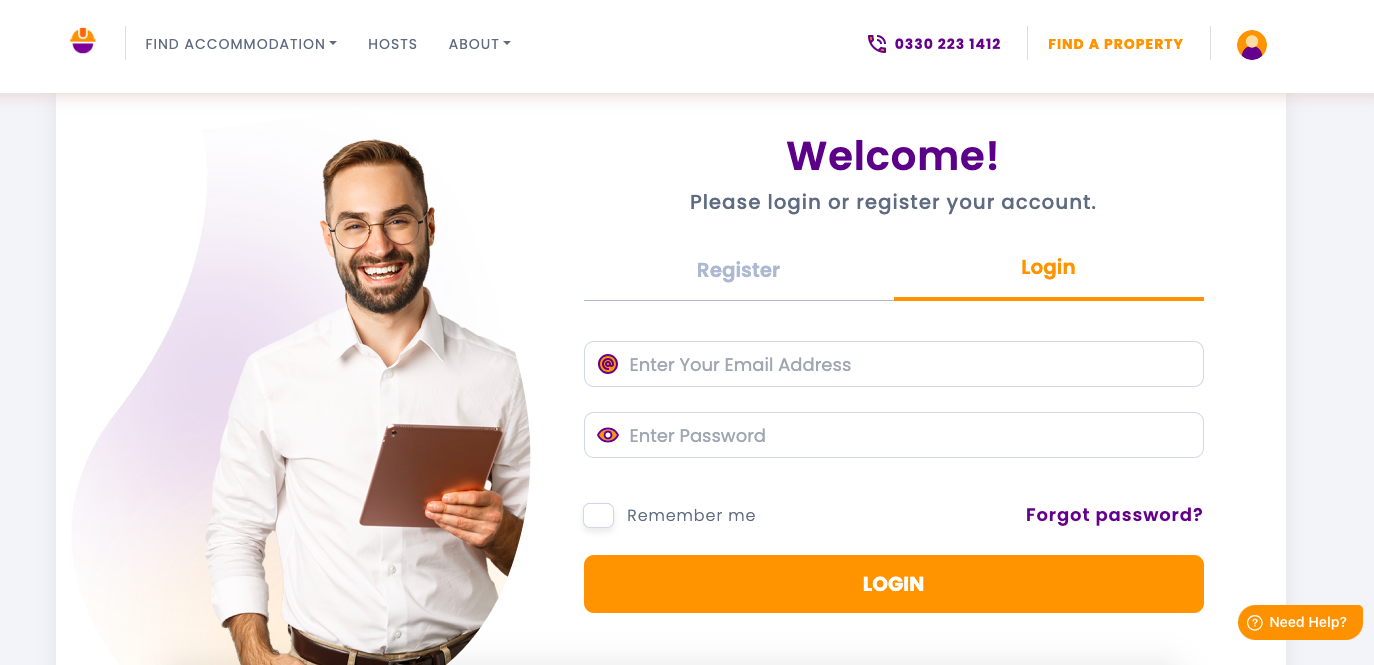
Click the emoji icon in the top right corner and select the Guest tab. This will direct you to the login page.

If you already have an account, simply enter your email address and password used previously to register, then click Log In. Forgot your password? Click the Forgot Password link to reset it.
Completing Your Profile
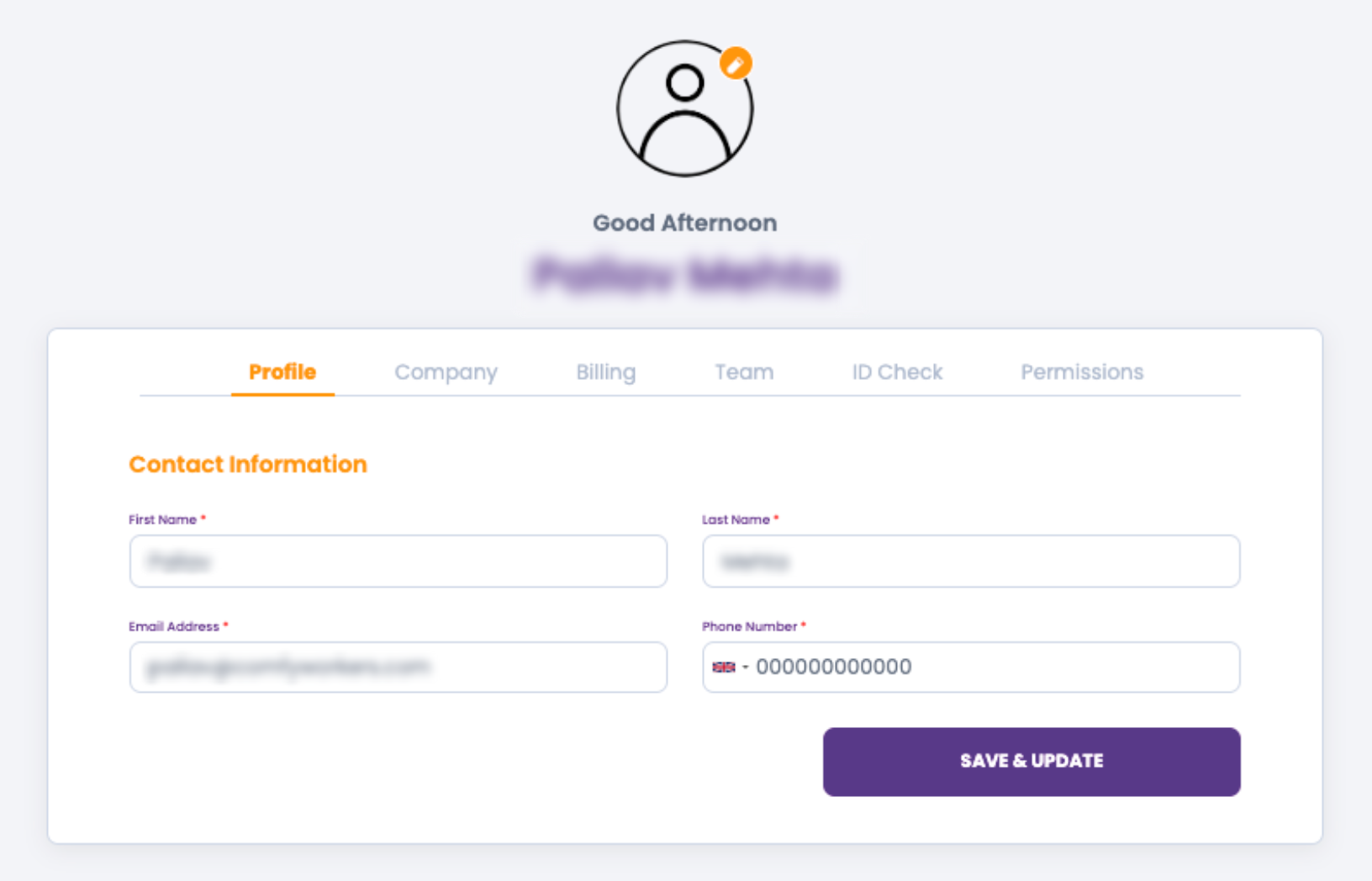
Once logged in, click the emoji icon in the top right corner again and select the Profile tab. This will open your profile page, where you can complete the necessary details.
Profile Tab
These fields should have auto populated from your registration details, however please double-check all information and make any necessary updates before submitting.
Company Tab
Here you need to ensure your company details are correct.
If you are a UK-registered company:
Company Name: Begin typing your legal company name or company number. This field is connected to Companies House and will suggest matches. Please select the correct company from the list—do not free type.
Company Finance Email: Enter a central email for receiving invoices. If you're unsure, you can add this later. You may enter up to four emails—please notify our finance team if you'd like multiple contacts.
Company Domain: (Optional) Add any relevant company email domains (e.g.,
@comfyworkers.com,@yourcompany.co.uk)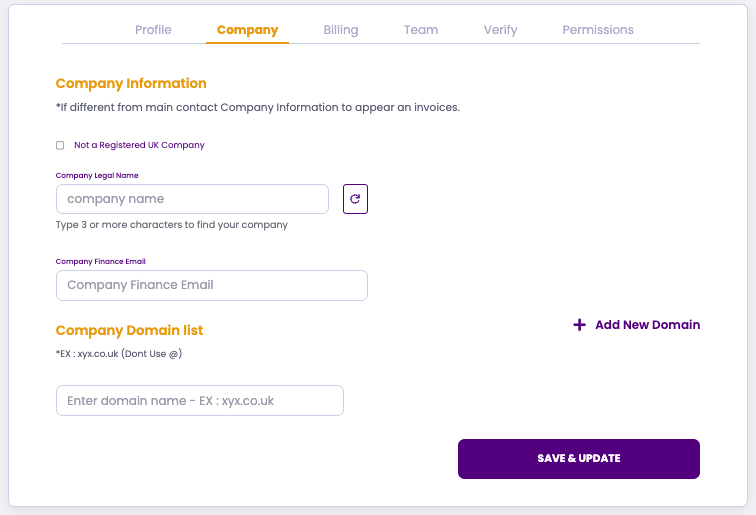
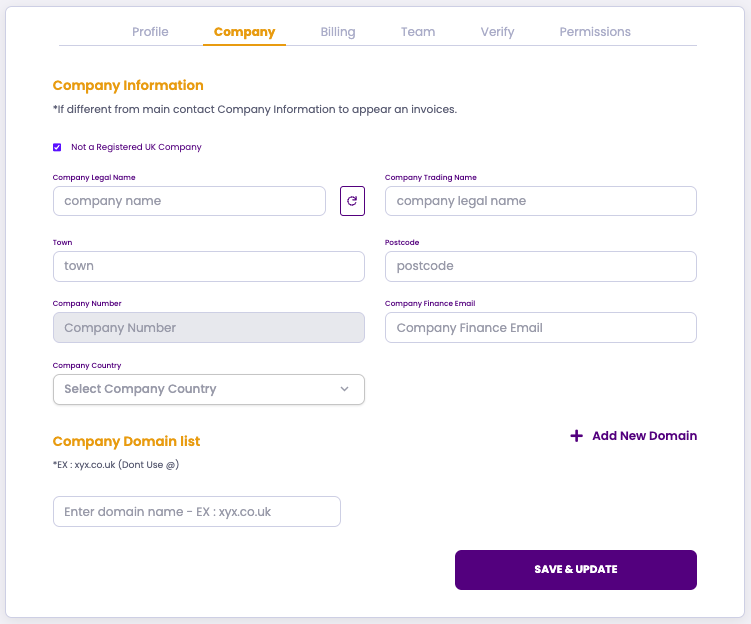
If you are a non-UK registered company:
Tick the box labeled "Not a registered UK company."
Enter your trading name (you can use your name if you dont trade under a company name)
Leave the company number field blank if you don’t have one
Provide your full address for communications.
Billing
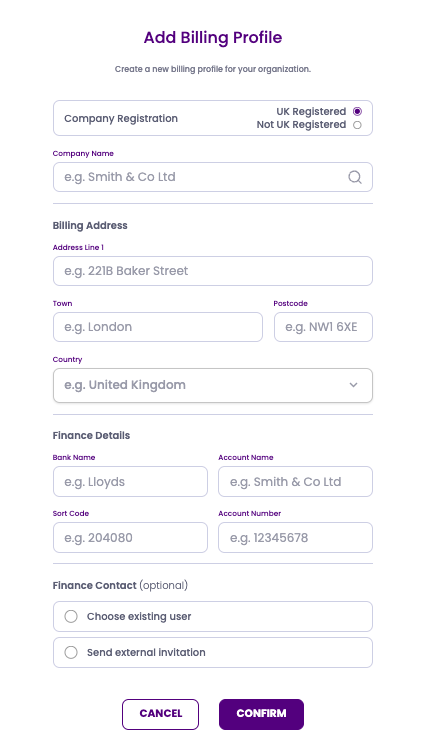
Here you can set up the billing profile for your company. Once you click on "Add billing profile" you get the below pop up window. You need to complete all sections
Company name : this is connected to companies house, so once you start to type your legal company name or company number it will bring up suggested matches for you to select from.
Billing address : this is the address you want to have appear on your invoices. This is auto populated from companies house selection.
Finance details : Bank details for the company
Finance contact : you can select and existing user or send an invitation to a new contact you wish too add as a company finance contact.
Confirm to save the details.
 Team
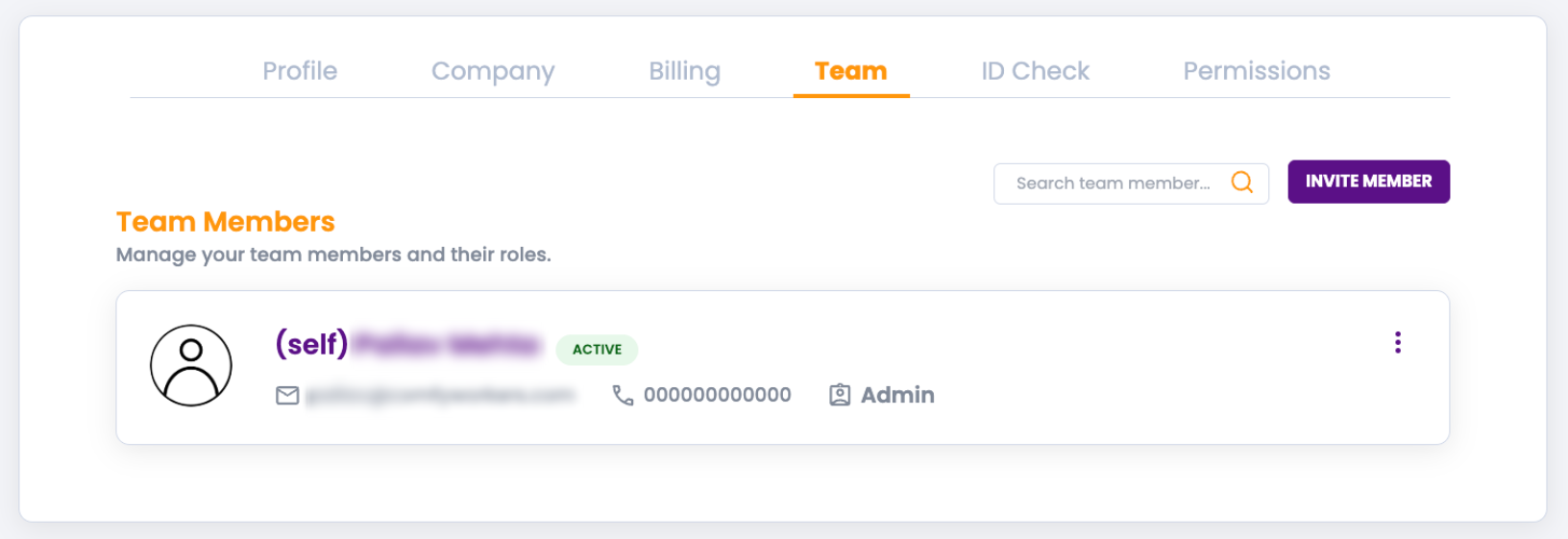
Team
The Team tab is where you can invite other bookers or guests for your company, you will need to add anyone who wishes to use our platform, to ensure they are connected to your company. Click here for more information on adding team members.
ID Verification
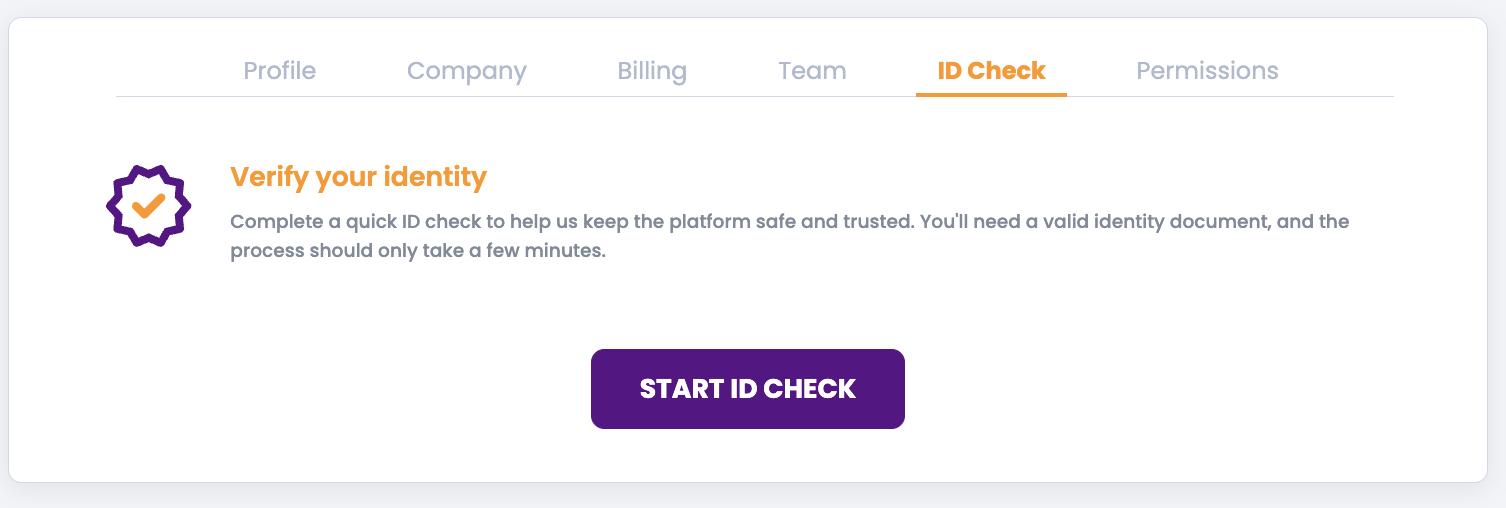
We ask that you complete a quick ID check to help keep the platform safe and trusted. Click "Start ID Check" this will take you through a quick and easy ID verification process with our provider Onfindo. Click here for more information on completing ID verification.
Permissions
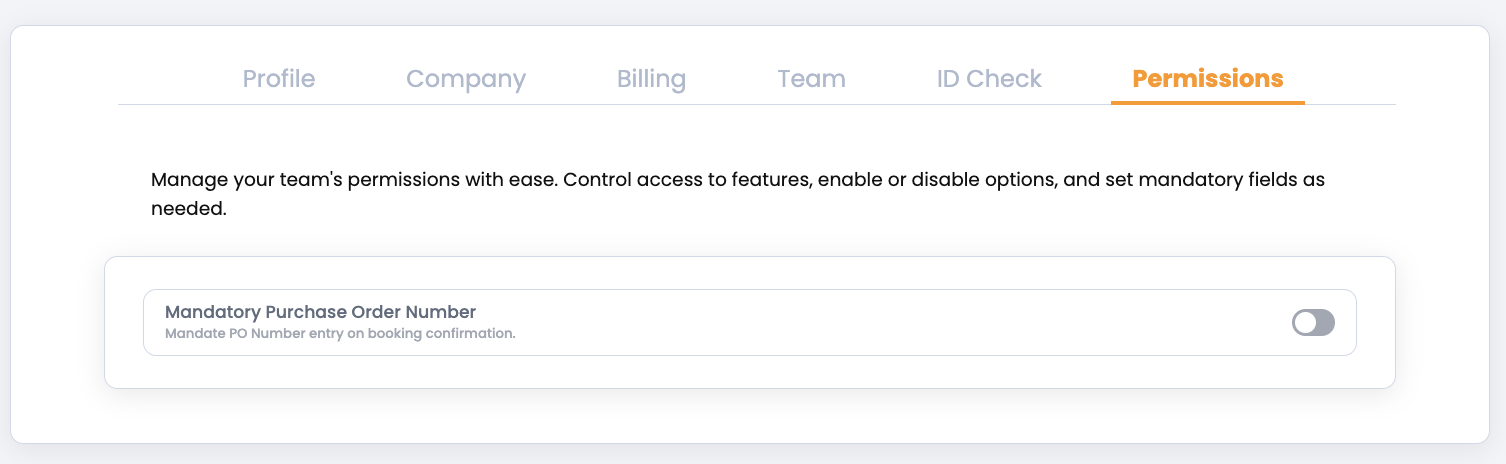
This setting allows you to control specific booking features. Currently, you can toggle the requirement for purchase orders. When enabled, all bookings made by yourself & other bookers or admins within your company must include a purchase order before the booking can be confirmed. This ensures consistency and compliance with internal processes.
Was this article helpful?
That’s Great!
Thank you for your feedback
Sorry! We couldn't be helpful
Thank you for your feedback
Feedback sent
We appreciate your effort and will try to fix the article